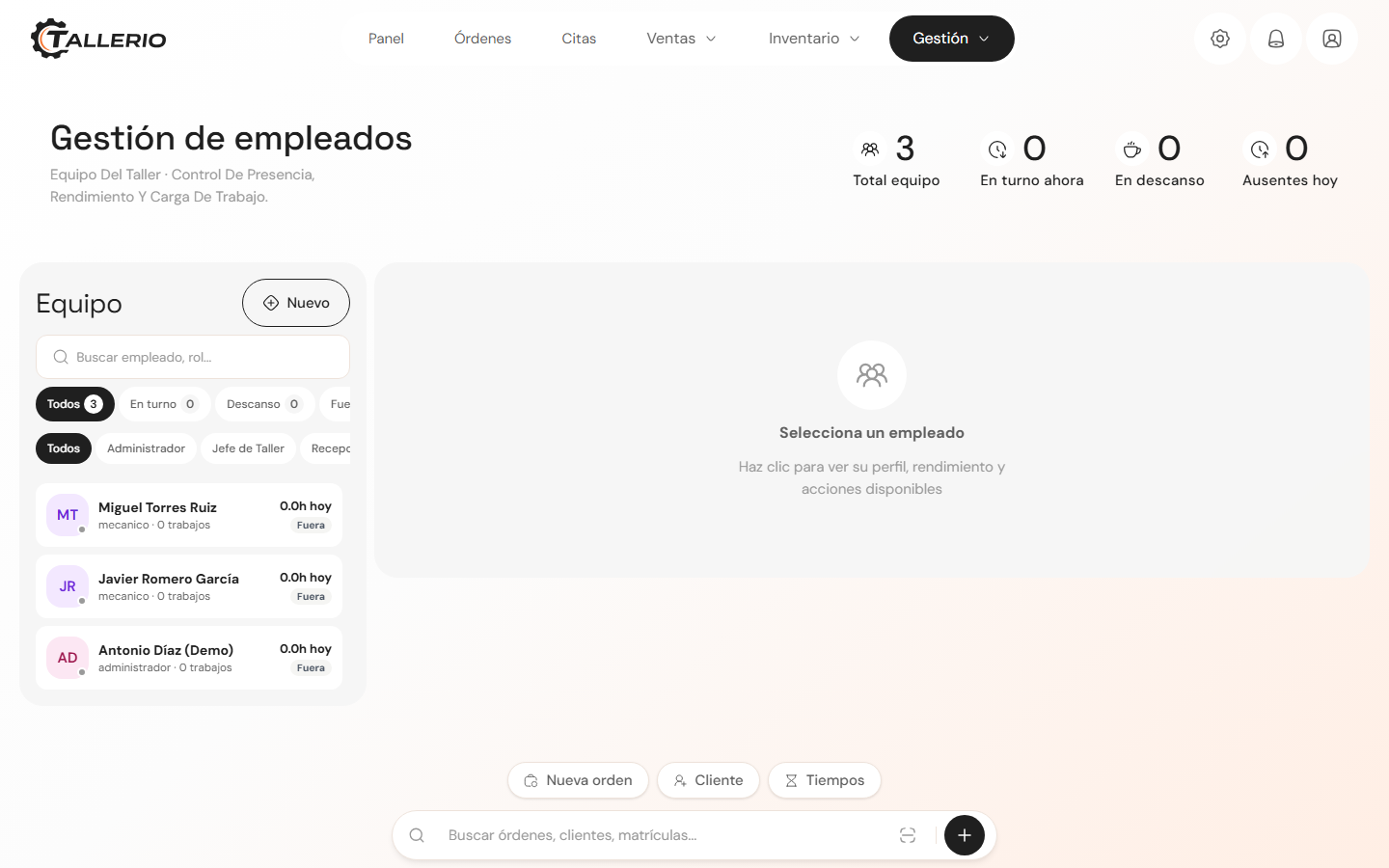
In Employees you manage your whole team: who's part of the workshop, what role each person has and what they can access. The screen is split between the Team list on the left and the selected employee's profile on the right.
Add an employee
- In the Team panel, click New. The New employee form opens.
- Under Personal information, fill in the Full name (required) and, if you want, the Phone and National ID.
- Choose the Role from the dropdown. The role determines which sections and actions will be available to that person.
- Under System access, enter the Email and a Password of at least 8 characters, and repeat it under Confirm password. With these details the employee logs in and clocks in.
- Click Add employee.
The Plan employees box shows how many seats you've used. If you reach the limit, upgrade your plan from Settings → Billing to add more people.
Change an employee's role or details
Select the person in the list to open their profile. In the actions menu (three-dot icon, top right) you have:
- Edit: change name, role, phone, email or an internal note.
- Suspend access: temporarily remove access without deleting their data; later you can Reactivate access.
- Delete: permanently remove the person.
Roles and their permissions are defined in Settings → Roles and permissions.