Inventory stores your products and parts with their stock, price and supplier. Tallerio alerts you as soon as an item drops below the minimum you set.
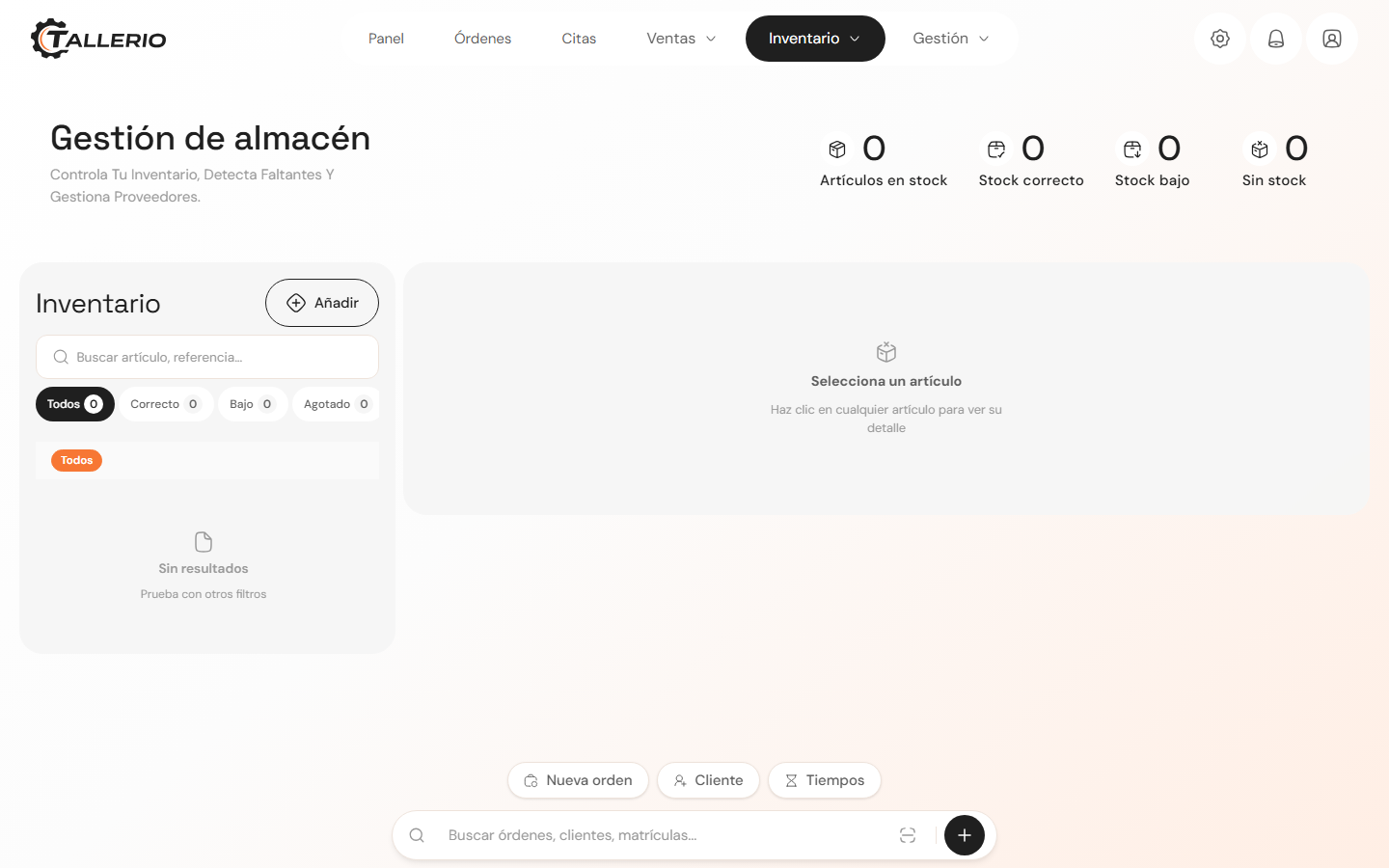
Add an item
- In the menu, open Inventory.
- In the Inventory list, click Add. The New item panel opens.
- Fill in the details:
- Basic information: Reference, Name (required), Description, Item type (Product or Parts) and Condition (New or Used).
- Stock and price: Quantity, Minimum stock, Maximum stock, Sale price (required) and Cost price.
- Supplier and Category: optional; you can create a new one right there.
- Compatible vehicles: mark All vehicles or add specific models.
- Click Add item.
Adjust stock
- Select the item in the list.
- Click Adjust quantity.
- Enter the quantity and click Add (stock in) or Remove (stock out).
Every movement is recorded in the item's Movement history.
Spot low stock
The cards at the top summarize your inventory: Items in stock, Stock OK, Low stock and Out of stock. Use the All, OK, Low and Out of stock tabs to filter.
When an item falls below its minimum, its profile shows Low stock; if it reaches zero, it shows "Out of stock, order needed from supplier." From there you can launch a Quick order to the item's supplier.