Each client's profile brings together their vehicles, their orders, their invoices and the history of everything that's gone through the workshop. Here's how to look it up.
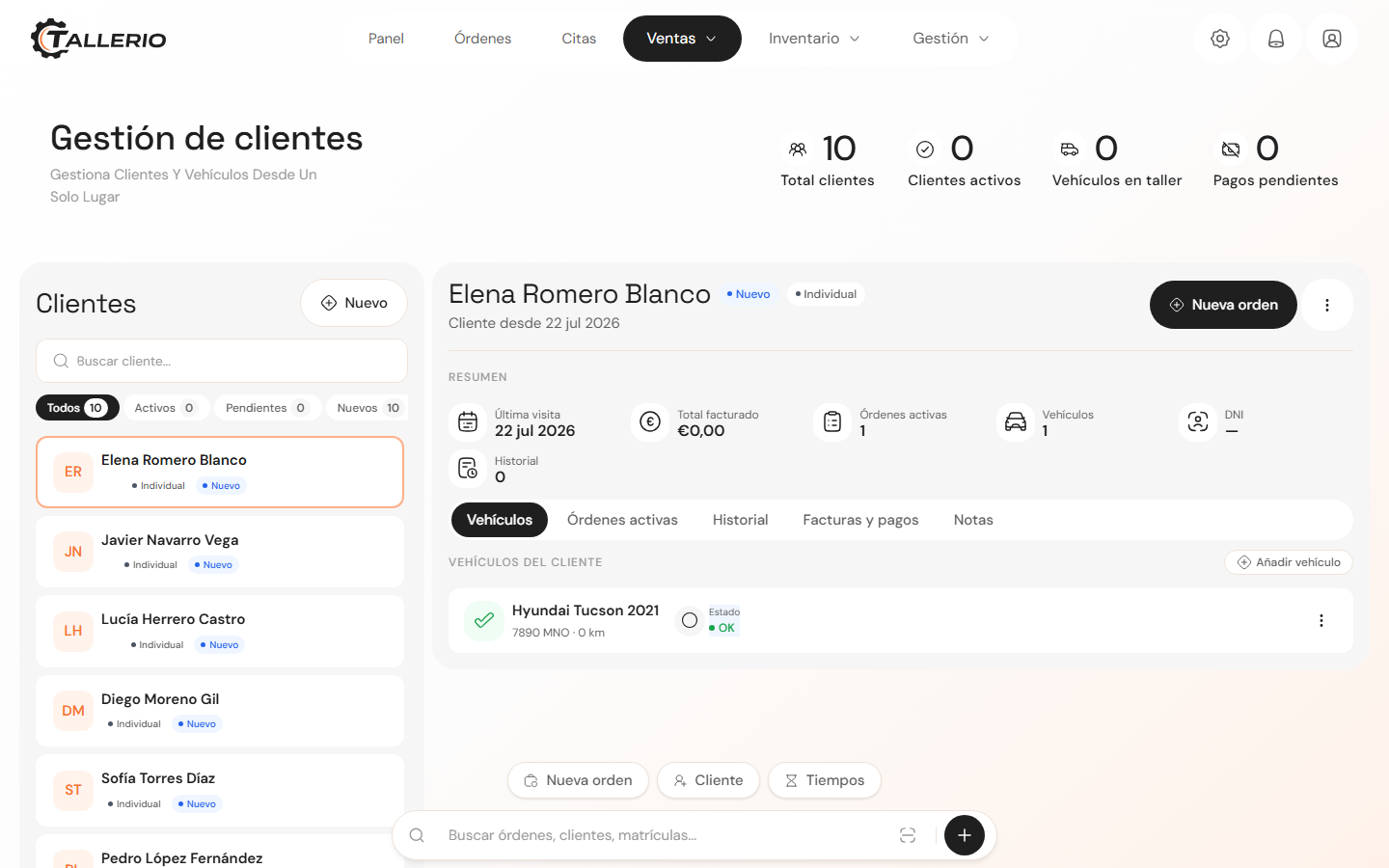
Search for a client
- Open Clients.
- In the search box on the left, type the name, email or phone. The list filters instantly.
- You can also use the quick filters above the list: All, Active, Pending and New.
- Click a client to open their profile on the right.
Searching by license plate? Use the app's global search bar at the top: selecting a vehicle takes you straight to its owner's profile.
Check a vehicle's history
With a client selected, their profile has several tabs:
- Vehicles: all their cars, with status and mileage.
- Active orders: repairs in progress.
- History: the record of services already closed.
- Invoices and payments: all documents and their payment status.
- Notes: internal notes.
In the History tab, services appear grouped by vehicle and sorted from most recent to oldest. For each car you'll see the number of visits and the total spent, and for each service, the date, mileage, parts used and associated invoices. Click a service's title to open the full order.