Vehicles are always linked to a client. Once a car is registered, you can open orders for it and see its complete service history.
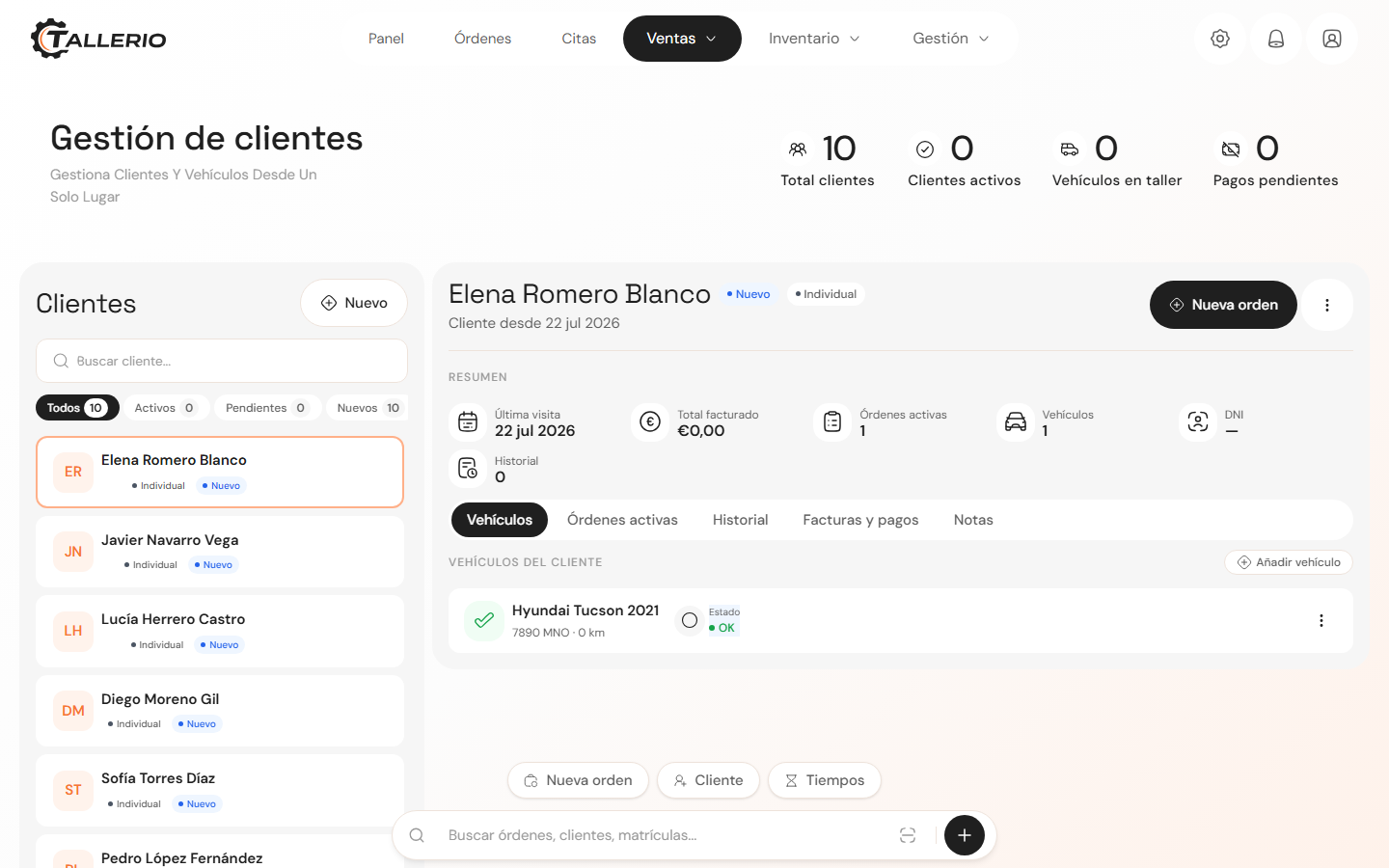
Register a vehicle
- Open Clients and select the client in the list on the left.
- In the Vehicles tab, click Add vehicle.
- Fill in the car's details:
- Make, Model and Engine: chosen from dropdown lists. Picking the make loads its models, and picking the model loads its engines.
- License plate: required, along with the make.
- Year, Mileage, Color and VIN: optional.
- Click to save. The vehicle appears on the client's profile.
Make, Model and Engine come from an internal catalog. If you can't find one in the list, you can type it in by hand.
Edit or delete a vehicle
On each vehicle's card, click the three-dot icon (⋮) for:
- New order: opens a work order for that car.
- Edit vehicle: correct the license plate, mileage or other details.
- Delete vehicle: remove it from the profile.
The car's status (In workshop or OK) is calculated purely from its active orders: when it has a repair in progress, it shows as In workshop.