Every repair starts with a work order: it brings together the client, the vehicle, the reported problem and the jobs to be done in one place. Here's how to open a new order, step by step.
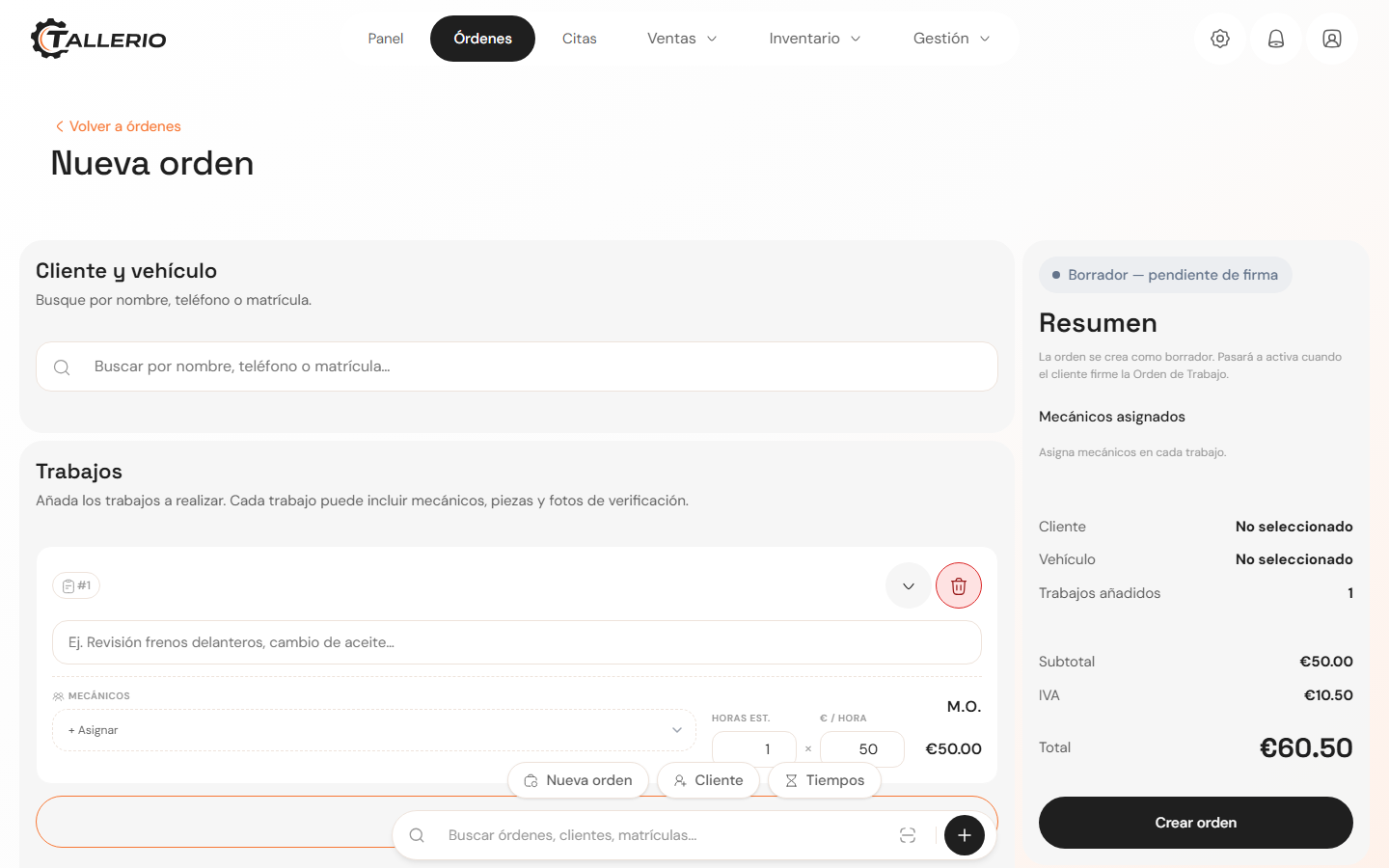
Open a new order
- In Orders, click the button to create an order. The New order screen opens.
- Under Client and vehicle, search by name, phone or license plate. If the client doesn't exist yet, click Create new client and fill in name, phone and, if you want, make, model and license plate without leaving the page.
- If the client has several vehicles, pick the right one from the Vehicle dropdown.
Describe the problem
Under Reported problem, write down what the client says (for example, noises or loss of power). You can mark one or more Quick categories (Engine, Brakes, Oil, Diagnostics, Battery, Suspension, Clutch or Tires) and set an Estimated delivery date.
Add the jobs
- Under Jobs, write the description of each job (for example, "Oil change").
- Assign one or more mechanics with + Assign.
- Enter the Est. hours and the € / hour rate; the app calculates Labor automatically.
- Click More details to add Parts / Materials (from the catalog or manually), internal notes and before-work photos.
- Use Add job to include as many jobs as you need.
The Summary on the right always shows the client, the vehicle, the jobs added and the total including VAT.
Save
Click Create order. The order is created as a draft, pending signature: the Work Order (WO) then appears ready to print, so the client can sign it before work starts. The order doesn't become active until it's signed.