From Appointments you organize the workshop's schedule in a monthly calendar. Here's how to create a new appointment for a client.
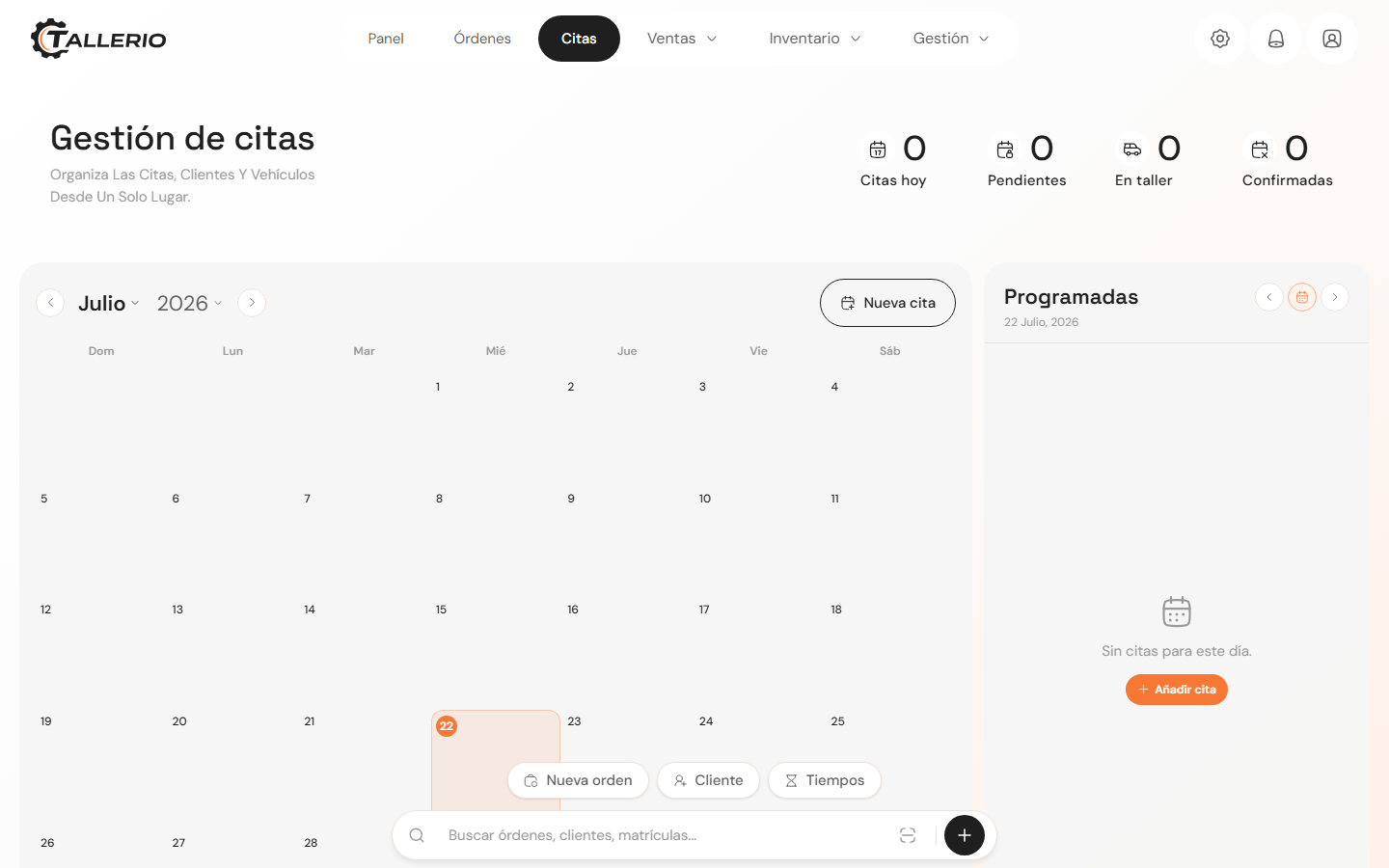
Create the appointment
- Go into Appointments. On the left is the month's calendar and on the right the selected day's appointments (Scheduled).
- Click New appointment (or Add appointment in the day panel). You can click a day on the calendar first so the date comes pre-filled.
- Under Date and time, set the Day, the Start and End time. The app shows the duration automatically. Leave the Status as New.
Client and vehicle
- Under Client, start typing the name or phone number: if the client already exists, select them from the list to fill in their details.
- Under Vehicle, if the client has registered cars, pick one from the dropdown; if not, check Add new vehicle and enter Make, Model and License plate.
Service
Mark one or more common services (General checkup, Oil change, Brakes, Tires...) with the labels, add Other service or reason if needed and write any notes or observations.
When done, click Create appointment. The appointment appears on the calendar with Pending status, awaiting confirmation.
Clients can also request an appointment themselves from your public online booking page. See the Online booking and hours guide.