When a client requests an appointment (from the workshop or from your booking page), it arrives as Pending and awaits your confirmation. Confirming it quickly matters: an unconfirmed appointment is a client who might go elsewhere.
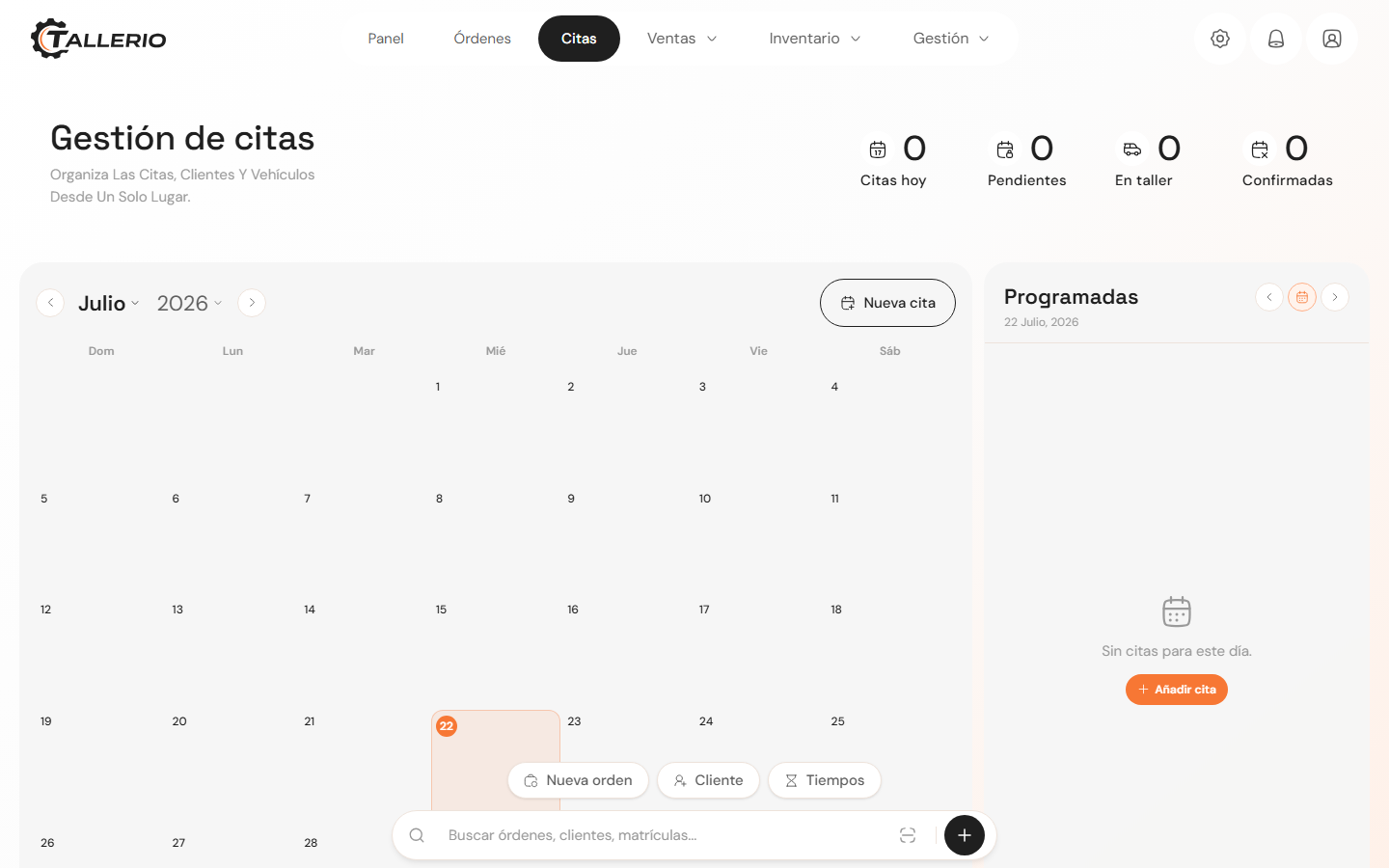
Confirm a pending appointment
- Go into Appointments and select the day on the calendar.
- In the Scheduled panel, find the appointment labeled Pending.
- Click Confirm. The appointment becomes Confirmed and the client is notified.
The workshop's main dashboard also shows the Appointments to confirm card, gathering upcoming pending appointments so you can handle them at a glance. If the appointment has a phone number, you can call the client directly with the phone icon.
Edit or change the status
- On the appointment's card, click Edit.
- Adjust the date, time, vehicle, service or Status: New, Confirmed, In workshop, Completed or Reschedule.
- Save the changes.
Delete an appointment
Click the trash icon on the appointment's card and confirm. The appointment is removed from the schedule.
The indicators at the top (Today's appointments, Pending, In workshop and Confirmed) give you the schedule's status at a glance.