Collecting an invoice means recording one or more payments against it. You can collect it all at once or in several installments (partial payments), and Tallerio keeps track of the outstanding balance for you.
Record a payment
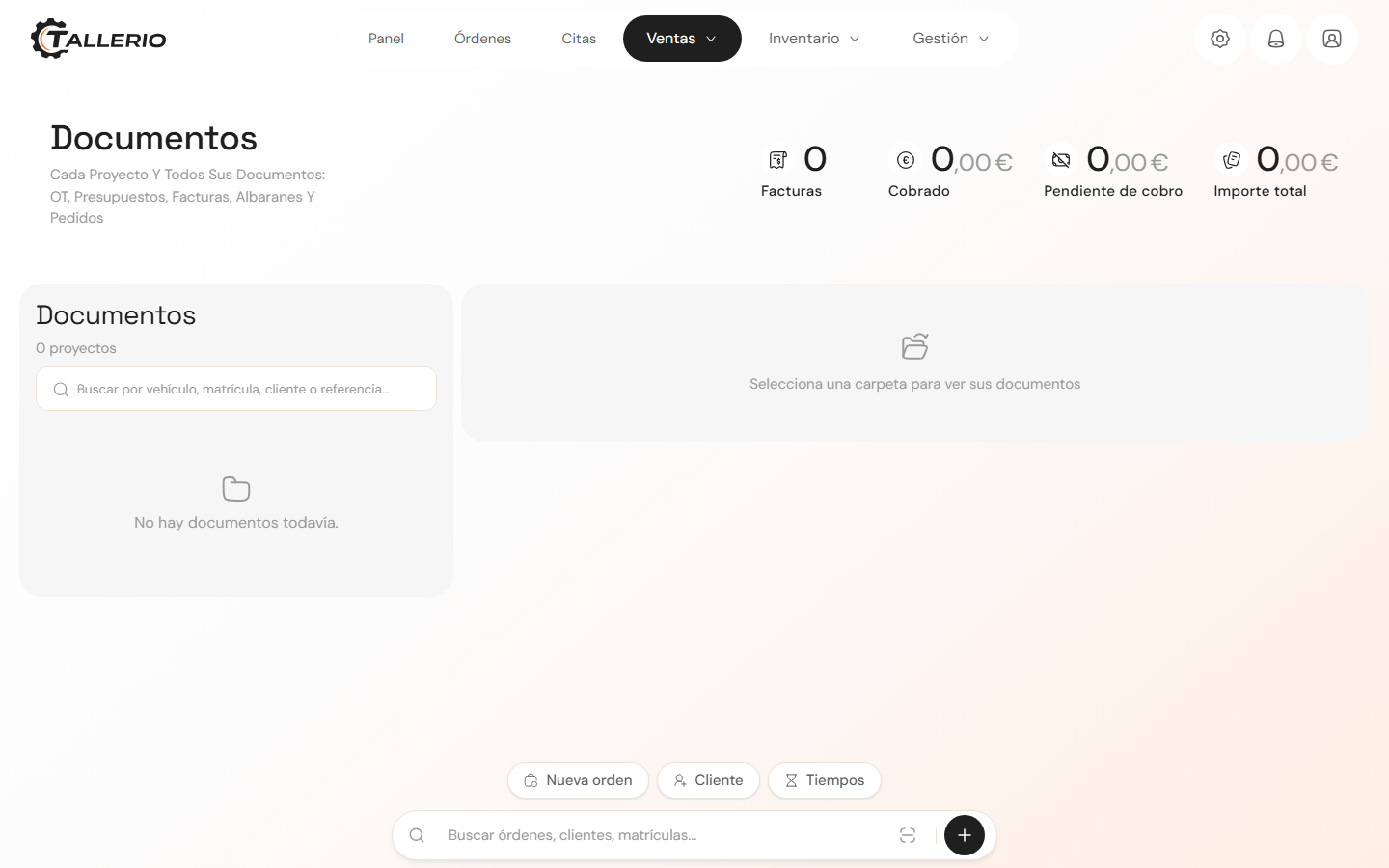
- In the menu, go to Documents and open the vehicle's project.
- In the document list, find the invoice and click the Payments button.
- The Payments window opens, with three figures at the top: Total, Collected and Pending.
- Under Record payment, enter the Amount, choose the Method (Cash, Card or Check) and the Date. You can add an optional Note (for example, "deposit" or "transfer").
- Click Add payment. The amount appears in the Payment history and the Pending balance recalculates instantly.
Partial payments
If the client only pays part of it, record that amount. The invoice will be marked Partial and show how much is still owed. Repeat the process each time a new payment comes in until the pending amount reaches zero: the invoice then becomes Paid ("✓ Invoice paid in full" appears).
If you make a mistake, you can delete a payment from the history with the trash icon and the balance adjusts again.
Important: a payment is a status of the invoice, not a change of document type. Collecting an invoice doesn't turn it into something else: it's still the same invoice, now marked as paid. You should never create a different document to reflect a payment.