The recommended way to invoice in Tallerio is to start from a project: that way the client, vehicle and jobs fill in themselves and you avoid transcription errors.
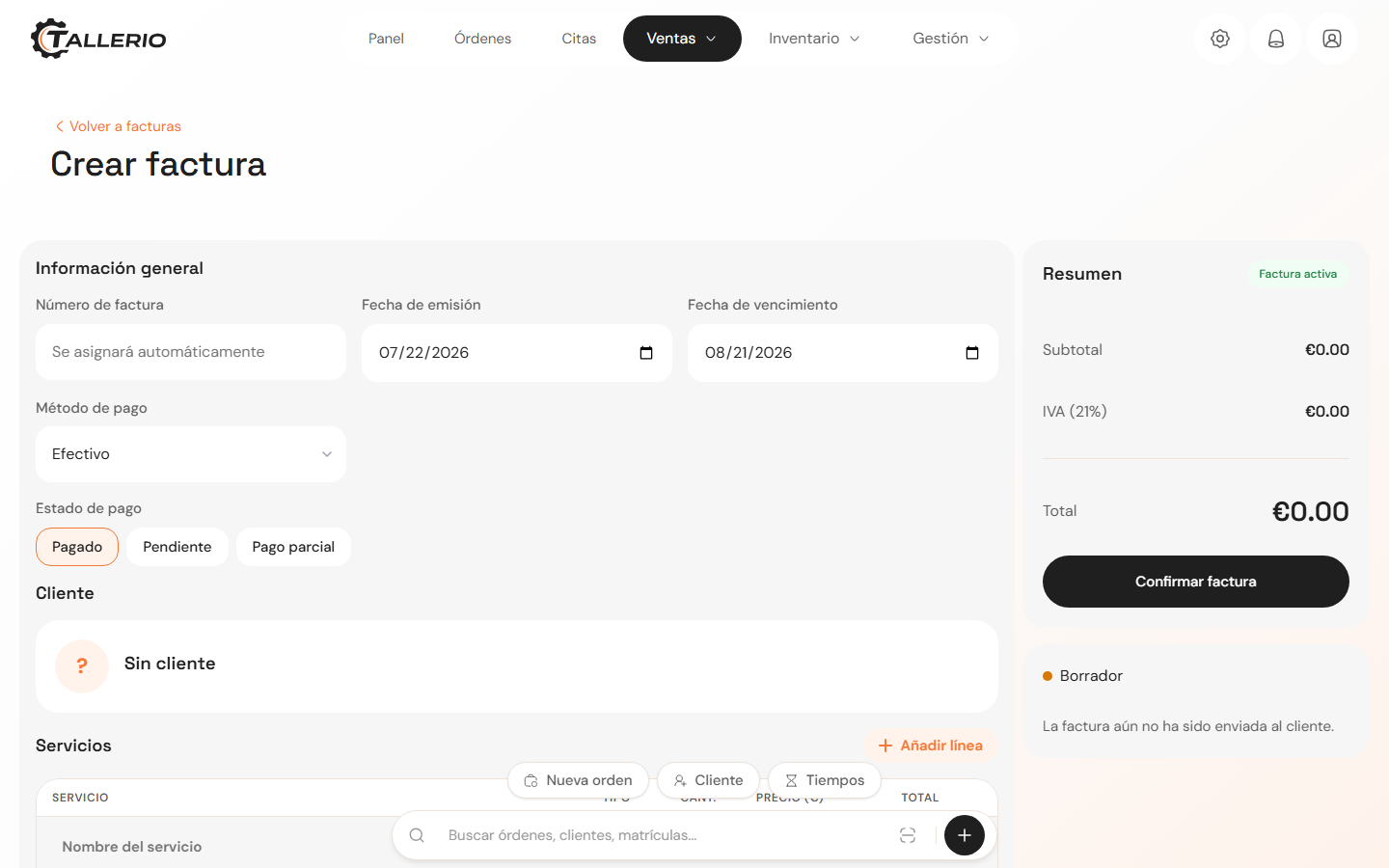
Steps to create the invoice
- In the menu, go to Documents and open the project for the vehicle you're invoicing. You can also start from Orders.
- Click Create invoice. The form opens with the Create invoice header.
- Under General information, review the Issue date and Due date, and choose the Payment method (Cash, Card, Transfer or Other). The Invoice number is assigned automatically and sequentially; don't type it yourself.
- Mark the Payment status: Paid, Pending or Partial payment. If you choose partial payment, enter the Amount paid.
- Under Client, check that the client and vehicle details are correct.
- Under Services, review the lines. Each line has a Service name, an optional description, the quantity (Qty.) and the Price. Labor lines and Parts are marked with their label.
- Use Add line to include an extra item, or the trash icon to remove a line that doesn't apply.
- Check the Summary on the right: Subtotal, VAT and Total are calculated automatically using your workshop's VAT rate.
Confirm
When everything's correct, click Confirm invoice. The invoice is saved with its final number and the preview opens so you can print, download or send it.
Need to save without closing it out? You can leave it as a draft and come back to it later from the project.
Something not adding up when invoicing? Contact support.